
As I wrapped up my unplanned sabbatical this week I wanted to make sure my new Mac setup included a proper backup process. Normally this is a quick job to setup with Super Duper.1 So when I booted up Super Duper and couldn't find my external drive to back up, I was worried I ran into an unexpected problem with either the type of drive or being on Apple Silicon. I ran through my normal troubleshooting steps and the drive seemed to be fine - files still opened, music still played, and I could see the drive in Disk Utility app.
I went to Shirt Pocket to start seeing if I could find any hints on why it couldn't find this external drive. I looked at everything and noted that I met all of the system requirements:
SuperDuper v3.11 requires High Sierra (macOS 10.13) or later, is Sequoia (macOS 15) compatible, and supports both APFS and HFS+ volumes.
And then it hit me... the external drive wasn't formatted as APFS.
The drive in question is a Crucial - X10 Pro that was labeled as "made for Mac". I made the mental assumption that "made for Mac" equals "formatted for Mac" aka APFS. That wasn't the case when I opened Disk Utility again and saw the exFAT format for the drive.
So I started my back up plan the old fashioned way - copy and paste.
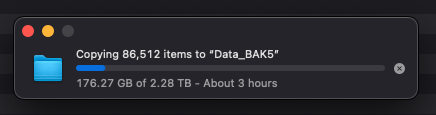
I then spent the afternoon cleaning another set of drives and realized I had a digital hoarding disorder. But that's for another time.
After the music media files were backed up. I tried to erase the drive and repartition it to APFS. Open up Disk Utility, selected erase and poof.
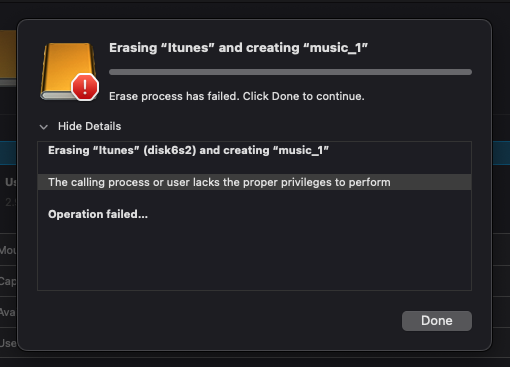
Disk Utility didn't believe I had had the rights to erase the drive, so I double checked my access rights.

Hmm... the privileges don't match the other external drives, I should have the access privilege to erase the drive. I did some research and found out the macOS Sequoia is more protective than I thought. Turns Disk Utility needed to be added to Full Disk Access in "Privacy and Security".
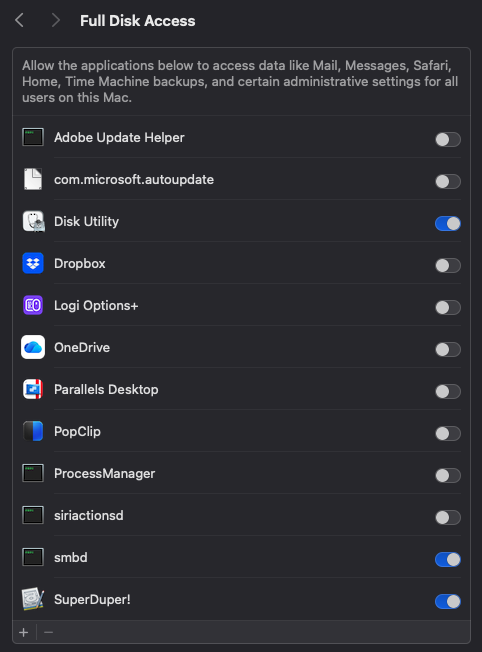
After making the change and re-opening Disk Utility, I was able to erase and repartition the drive.
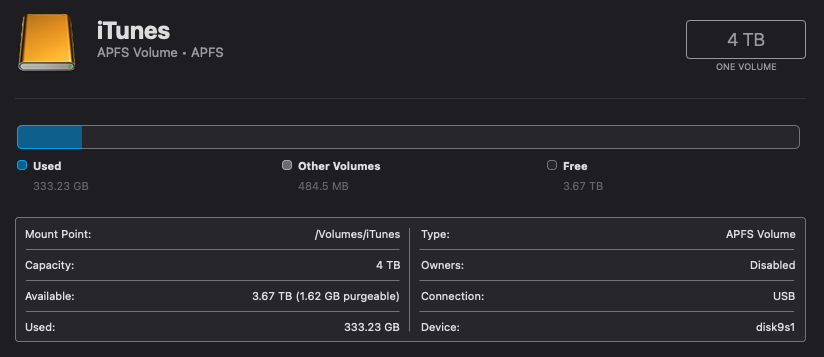
Now I just have to wait for the reverse "Copy/Paste" to see if my trick worked this time.
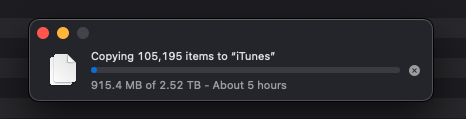
Wish me luck!
-
No affiliate link... just really like the program. ↩