
I've been doing some refresh "homework" on engineering work I haven't done in 20 years. One of the tools I've been working with is an AI agent to fast track my knowledge collection. Basically I go through an example activity, get a chat AI agent to build a reading list, convert that a markdown text file, and save the markdown file in Drafts. In the evening I covert the markdown to a PDF that I can read on the couch on my iPad.
One of the rabbit holes I went down recently is getting a "daily briefing" of everything I needed for tomorrow in a single information nugget - meetings, task that are due, etc. I want to use my Mac mini as an automation hub to run a series of scripts to collect different sources of information and put them into a single markdown file. The step I was working on was the conversion of markdown to HTML or rich text. The goal is to use a Python script that will take a markdown file, convert the markdown text to rich text format, and then copy it to the clipboard. I would append various snippets from different sources into a holding document to be emailed or texted to myself.
I got a working version of the Python script 1, but got the following errors when I ran the script:
mygeekdaddy@MBPM5:~ % ~/Dropbox/bin/Python/OF_markdown.py Missing dependency: markdown. Install with: python3 -m pip install markdown mygeekdaddy@MBPM5:~ %
Huh... maybe I forgot to install the markdown package for Python. I tried various package installers to install the missing Markdown package. Each time I got a variation of this:
mygeekdaddy@MBPM5:~ % brew install markdown
Warning: markdown 1.0.1 is already installed and up-to-date.
To reinstall 1.0.1, run:
brew reinstall markdown
mygeekdaddy@MBPM5:~ %
mygeekdaddy@MBPM5:~/Python % python3 -m pip install markdown
error:
This environment is externally managed
To install Python packages system-wide, try brew install
xyz, where xyz is the package you are trying to install.
If you wish to install a Python library that isn't in Homebrew, use a virtual environment:
These errors cleared some fog in my head from my previous Mac. I remembered I may have not done the best job setting up my Mac to work on Python. 2 My old Python environment could have been the inspiration for this xkcd comic:
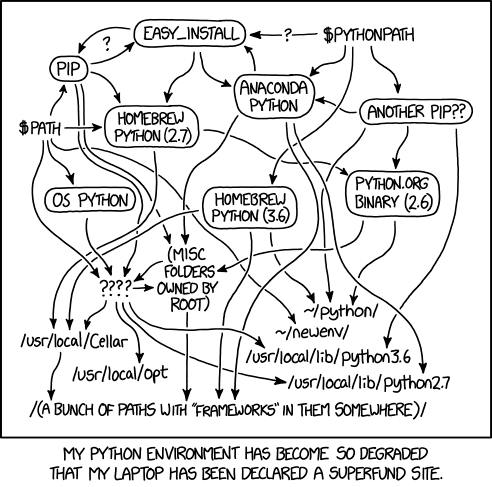
With the new macOS security "features" and the deeper dive I was taking with Python, it was about time I did things the right way.
Setting up a Python Virtual Environment
After reading through one of the tutorials I found, I got a working environment setup pretty quickly. I'd suggest reading through the link above for additional details, but this is the short version for me to look up at a later date.
- Open Terminal app.
- Create a new folder that will be used as the base for the Python environment you'll working in. In my case I made a new folder at the same level as
Desktop,MusicandDocumentscalledPython. - Navigate to the folder and run
python3 -m venv envname. The termenvnamewill the name you give your working Python environment. In case I just usedPython_Dev. - Congrats... your virtual Python environment is ready for you.
Activating a Python virtual environment
- Open Terminal app and navigate to the Python development folder at
~/Python - Activate the environment by entering
source envname/bin/activate. The\<envname>will be the name/title of the virtual environment you previously created.
Once you activate the virtual environment, your terminal prompt should change from something like this:mygeekdaddy@MBPM5:~/Python %
To a prompt like this that includes your virtual environment in parentheses:(Python_Dev) mygeekdaddy@MBPM5:~/Python %
- Now you can use a package manager to install Python packages like
markdownorpandocs:
pip install <package-name>
pip install markdown
brew install pandoc
To exit the virtual environment, just type deactivate and you will be back to a normal prompt.
Using this environment allows me to run Python scripts and install packages that don't conflict with macOS package manager.